A virtual machine (VM) uses a piece of software to simulate hardware. Within the VM, the operating system (Windows, Linux, MacOS) shouldn’t need to know it’s not running within real hardware.
The software that simulates the hardware is called a hypervisor. The hypervisor for this series will be VirtualBox (VM), presently maintained by Oracle (the database company). VM is available for Windows, MacOS, and Linux host platforms. This series is assuming a Windows host.
VirtualBox may be downloaded from here: virtualbox.org/wiki/Downloads
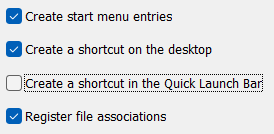
The installation can be done agreeing to defaults. There may be a prompt about the network being interrupted, which will be necessary when VB installs its virtual network interfaces — respond Yes (to continue). Another prompt may appear regarding Python bindings, which are primarily used for automation; this being outside the scope of this series, it won’t impact our work — respond Yes (to install). The final Custom Setup prompt might need a response, such as unchecking the Quick Launch Bar shortcut creation.
When done, there should be an icon on the desktop (assuming Windows). Start VB from there, and it should show a Welcome screen.
If prompted about which Experience Mode to use, choose Expert. This will be helpful later for customizing the VM’s settings. This mode can be changed at any time.
The rest of this series is assuming the VMs will run with single network interfaces, which should allow them to reach the Internet through the local host’s hardware. There are slightly more complex network configurations (such as dual-homing use of the VB host-only interface) that might be helpful if running within a corporate network where the default networking of VB won’t work.