This and subsequent articles are intended to help set things up for a hand-off to the book, Python Crash Course, by Eric Matthes.
First of all, the following steps might help getting Python to work quickly within a Windows environment:
- Download the latest version of Python to the local system from the following location: python.org/downloads
- After downloading, double-click the local file that was downloaded to install Python.
- At the first prompt, check the box next to Use admin privileges when installing py.exe.
- Check the box to Add python.exe to PATH.
- Click Customize installation.
- Check all boxes, then click Next.
- In the Advanced Options prompt, check the box next to Install Python… for all users.
- In the Customize install location field near the bottom, check that the default path is something like this: C:\Program Files\Python
- Click Install.
Testing Install
Installation done… now what?
Instead of instructions for setting up complicated environments using things like Eclipse or Visual Studio — these are called IDEs, or Interactive Development Environments — here we’ll be using what’s already available on the Windows system. (The “complication” of the following should just be configuring some basic settings.)
Open a Command Prompt. (In case it’s not been done before, try using Windows’ search, which can be found by right-clicking the Windows start icon, and choosing search. Enter CMD, and when “Command Prompt / System” appears, right-click on that, and choose Pin to Start, just to make it easier to find next time. Finally, click on the Command Prompt icon in Windows’ Start, and a text window should appear.)
Within the Command Prompt, enter the following (that’s a capital V):
python -V
Python should respond with whatever version was just installed.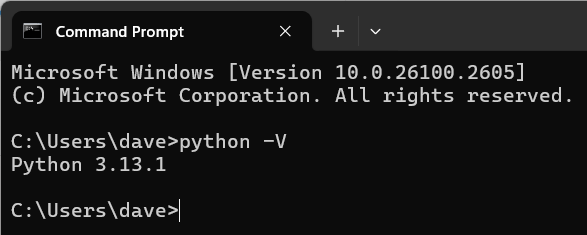
Test Script
A good habit to get into with writing scripts is to treat them as individual projects. Even the smallest “project” should have its own folder, within which all its input and output files can be kept, along with the script itself.
The quickest script in most languages to write is something that will put out a text message. Most use “Hello, World,” but let’s be reasonable and professional with something more useful, such as just “Python is working.”
Setup a project folder (using Windows’ File Explorer) within the local system, such as PyTest.
Before continuing, let’s check that File Explorer’s setup to show file extensions (if you know it is, skip to the next paragraph). In File Explorer, click the View menu. Within View, click Show, and ensure the box next to Show Filename Extensions is checked. In older versions of Windows, this options may be in a slightly different location.
In File Explorer, right-click within the empty PyTest folder, and choose New \ Text Document. When the “New Text Document.txt” name appears, change it to pytest.py and press [Enter]. Whenever changing extensions from the defaults, File Explorer will pop up a prompt whether to change it; click Yes.
Right-click on the pytest.py file, and choose Open with… Notepad, or Edit in Notepad. Notepad should open, and show a blank page.
Within this empty file, enter following:
print( “Python is working.” )
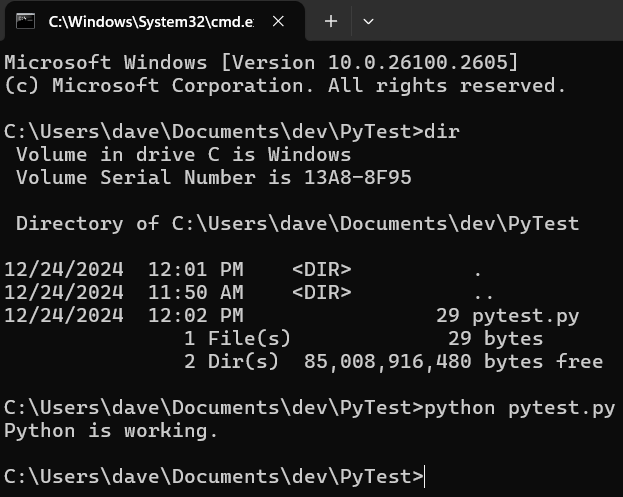
Save the file, and in File Explorer’s path field, replace what’s there with cmd and press [Enter]. A new command prompt window should appear with its default location being this same folder. Confirm this by using the dir command to see the directory contents.
At the command prompt, run the test script by using the following:
python pytest.py
The following shows the final output, including the dir command, along with the running of the pytest.py script:
At this point, most tutorials should work, since usually they assume command line or prompt access. In fact, similar methods for installing Python in Linux and MacOS will result in a command (or “terminal”) window being able to run pytest.py in (almost) exactly the same way.