Although the goal might be to reach the point of using an IDE (Interactive Development Environment), especially if that includes a debugger function (which will be explained later), it might be good to start by setting up something much simpler.
In this case, assuming Windows (although there are equivalents in MacOS and Linux), we have the Python interpreter installed (see Python on Windows), and a place to run our scripts in (command-prompt or terminal). The part that’s missing is a text editor that understands Python.
During the Python installation, we used Notepad to create a simple file to test that it was working properly. Notepad’s part of Windows, and is very limited relative to being useful for writing code. Notepad++ (“Notepad plus-plus”) is a free editor that can be installed in Windows, which also happens to know quite a bit about modern programming languages, including Python. It can be downloaded from here — usually, the top listed item is the right one to go with (at the time of this writing, for example, it’s showing “Download Notepad++ v8.7.5 (stable: auto-update triggered)” at the top). Its installation doesn’t require anything other than defaults. It’s free, but the author(s) appreciate donations (for example, if you like it, consider donating $20/year as long as you’re using it).
The first time running Notepad++, it might be helpful to configure a few things:
- Look in the Settings menu for Preferences.
- In Backup, uncheck the box next to Remember current session for next launch.
- In Search Engine, choose DuckDuckGo (assuming Google-spying is not desired).
Test the Environment
As was done in the previous Python setup, doing a test of the new changes, even though it’s just the editor, might be helpful in clearing up any issues… before things come up during real development.
Using File Manager, create a Projects folder under Documents (if it’s not already there). Within Projects, create a folder called npptest. Within npptest, right-click and choose New, then Text Document. This’ll create a file called “New Text Document.txt.” Rename this file to npptest.py (you should get a prompt about changing the file’s extension; if not, use the View menu within File Manager to Show File name extensions).
If all is working so far, the following should be similar to what you’re seeing:
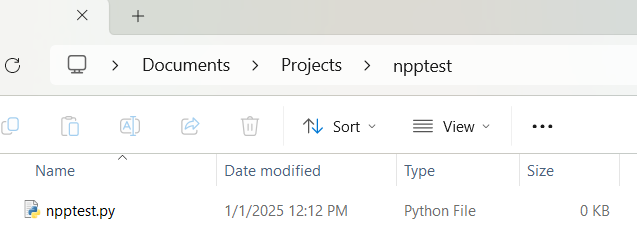
Right-click on npptest.py, and choose Edit with Notepad++.
Within the file, add the following:
print( "Notepad++'s creation of this file for Python is working." );
Save the file by clicking the Save icon (should be the 3rd from the left, and looks like a floppy-disk).

Back in File Manager, within the same npptest folder, replace the path with cmd and press [Enter]. A command-prompt window should appear, defaulting to this directory.
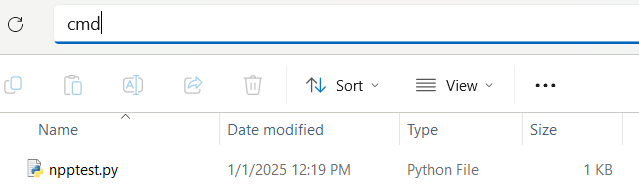
List the directory contents (using “dir”), then have Python run the script:
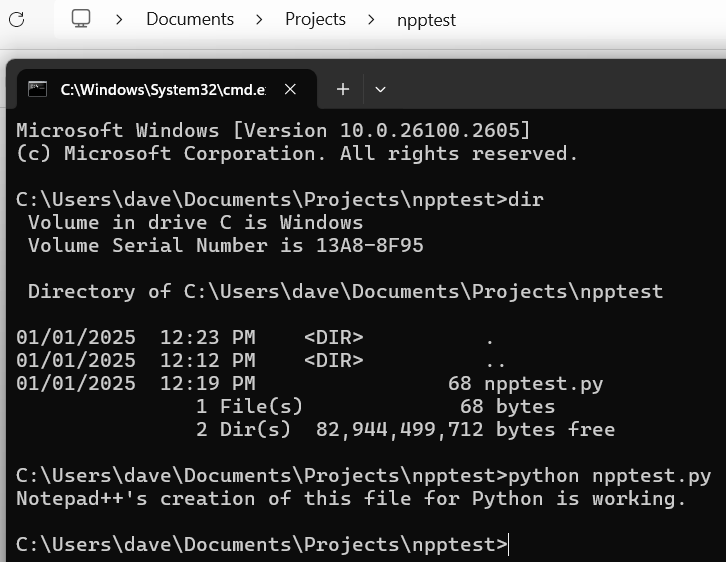
If all looks like the above, we now have a simple development environment. The process for developing new scripts will be similar to the steps we just did to test.
If using the (highly recommended) Python Crash Course, by Eric Matthes, the above will have gotten you to a point of using Python without Microsoft’s Visual Studio Code, which is an IDE. Being able to write and run Python (or any language) without an IDE will allow flexibility, but also force us to learn the language without the distraction of having to also learn an “environment.”